First Use & Setup
Last updated 10 months ago
StoreWizard only activates on App Store Connect or Google Play Console pricing pages.
This includes app pricing, in-app purchases (IAP), and subscription pricing.
Navigate to a supported page. Open your app in either: App Store Connect, or Google Play Console. Then go to the pricing section (app price, IAP price, or subscription price).
Start editing pricing. Enter the price editing screen where regional prices are shown.
Look for the StoreWizard button. Once you’re on a supported page, you should see the “Optimise pricing with StoreWizard” button added to the pricing table.
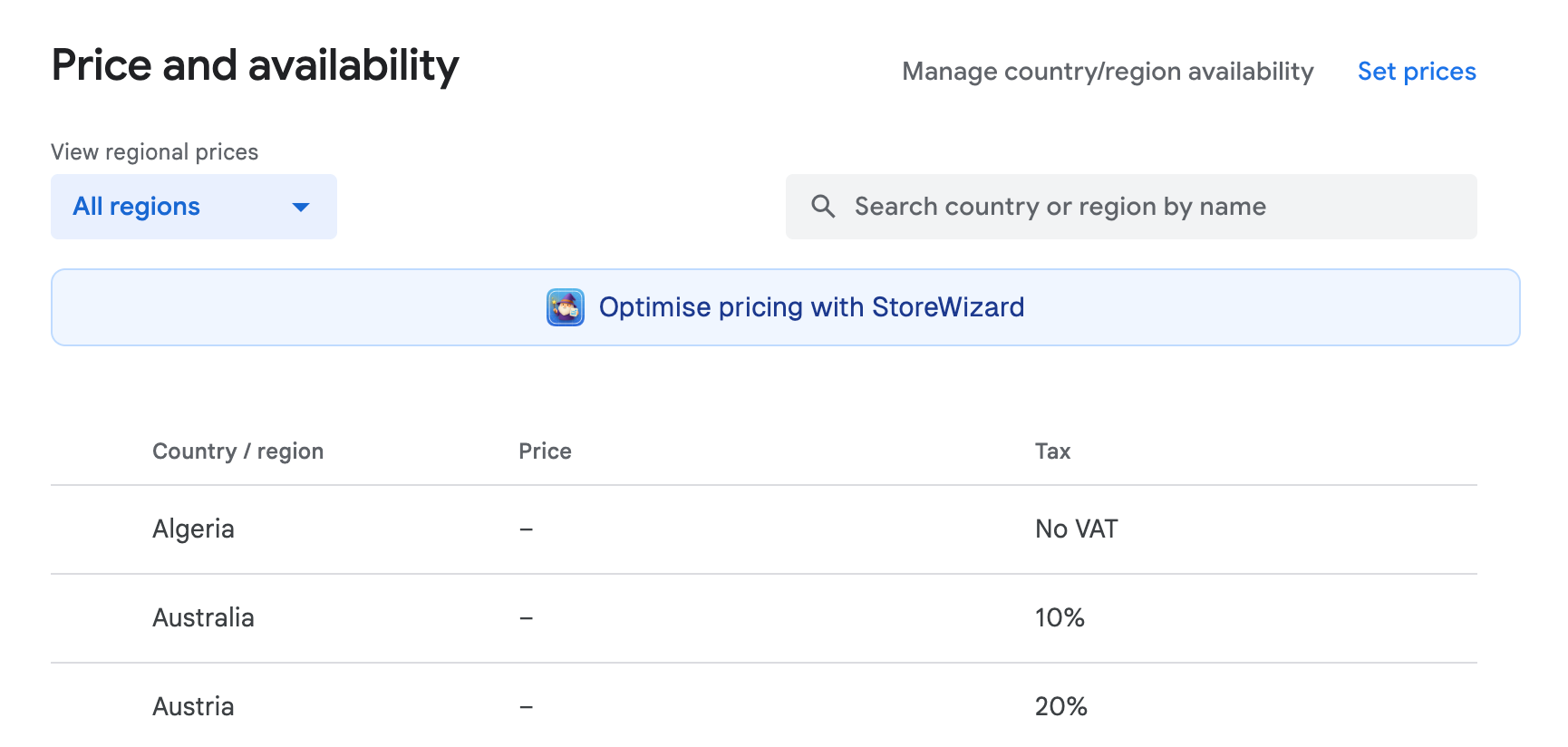
Click "Optimise pricing with StoreWizard" You should see StoreWizard’s UI overlay or pop-up appear. From here you’re ready to start generating regional prices.
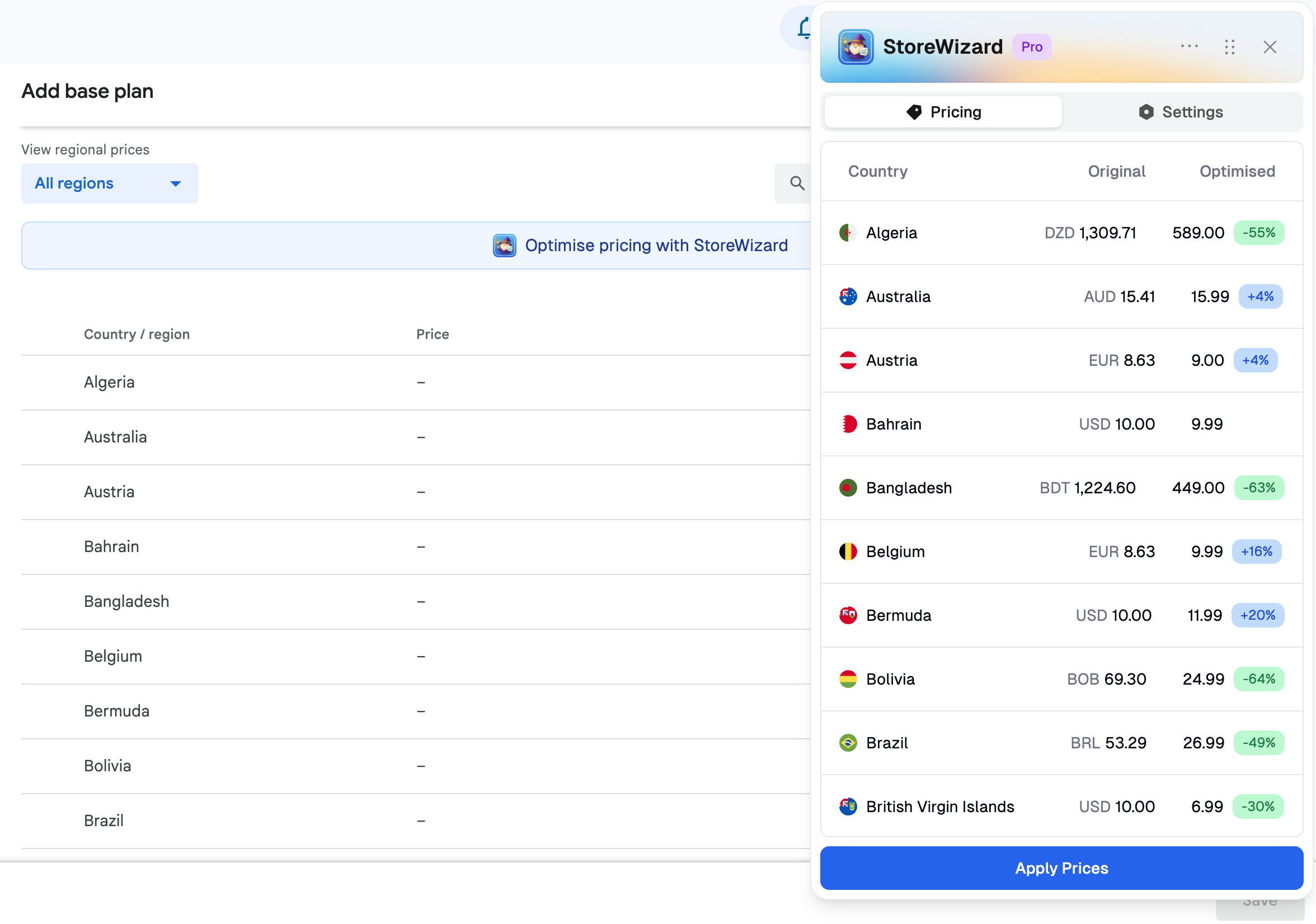
Click "Apply Prices"
🔍 Tips & Troubleshooting
If you don’t see the icon after installation, try refreshing the browser or closing/reopening it.
Make sure you are on a supported page in App Store Connect or Google Play Console — the extension only activates there.
If you have other extensions that block pop-ups or scripts (e.g., ad-blockers, script-blockers), you might need to whitelist the console pages.
Always keep the extension up-to-date (check Chrome Web Store for updates).